Every scenario you create appears as a card on your planning area overview page. Feel free to build as many as you need and you can sort them by date for easy access.
Clicking on the scenario card will take you to the scenario dashboard page where you can view your results and continue planning on project area tools.
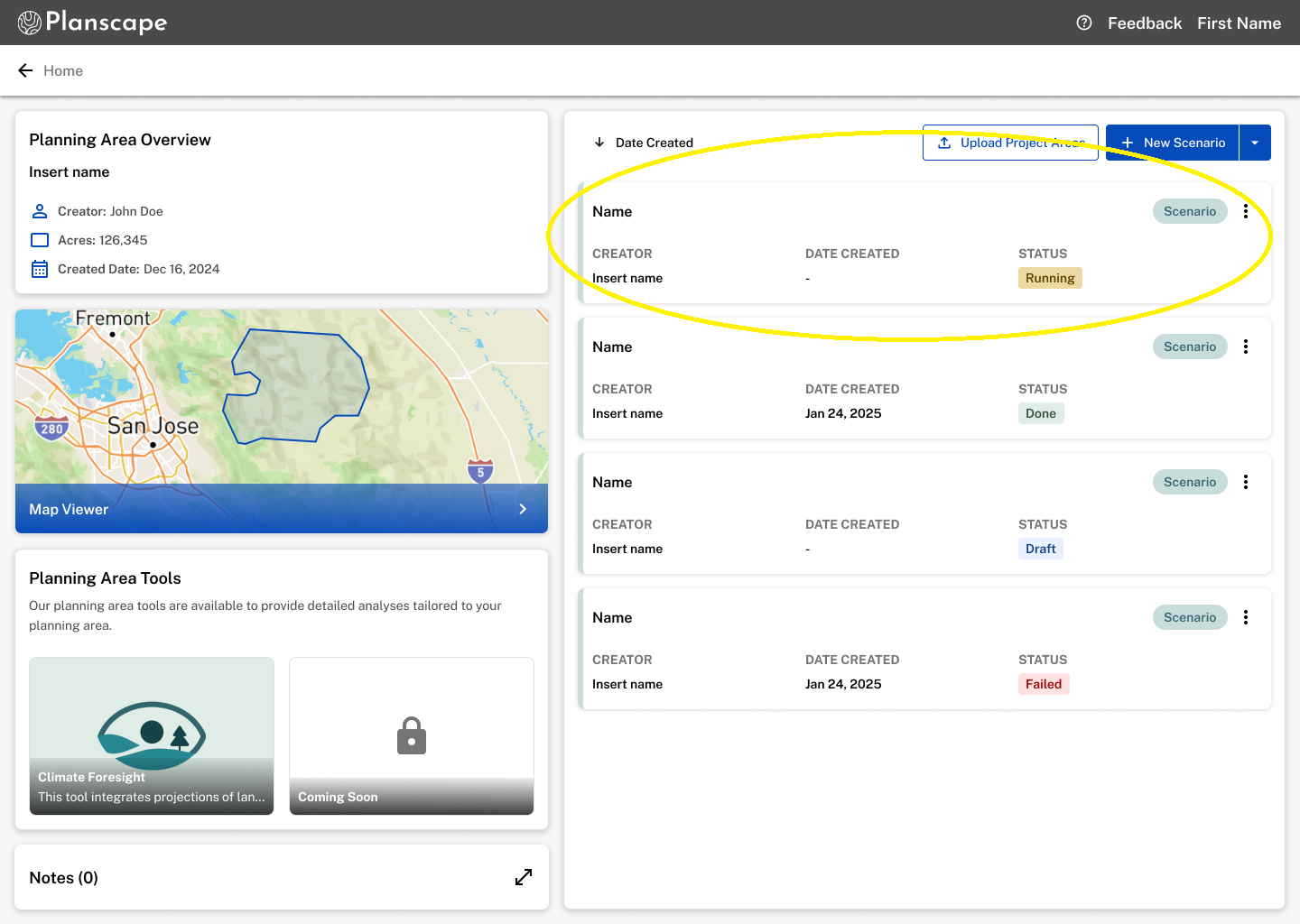
The scenario card displays the following:
- Creator: The person that created the scenario.
- Date Created: The date the scenario was ran in Planscape.
- Name: The scenario name the creator used during the scenario workflow.
- Status: Informs the state of the scenario.
- Running: You will be informed via email when your scenario has been completed and ready to view.
- Done: Scenario is done and results can be viewed.
- Draft: Scenario can still be edited by the creator and has not yet been ran.
- Failed: This scenario could not be run. Review the error message to troubleshoot the issue. Or submit a support ticket to the Planscape team.
- Scenario Tag: This helps you define whether your project areas are a result of an upload or a scenario ran in Planscape.
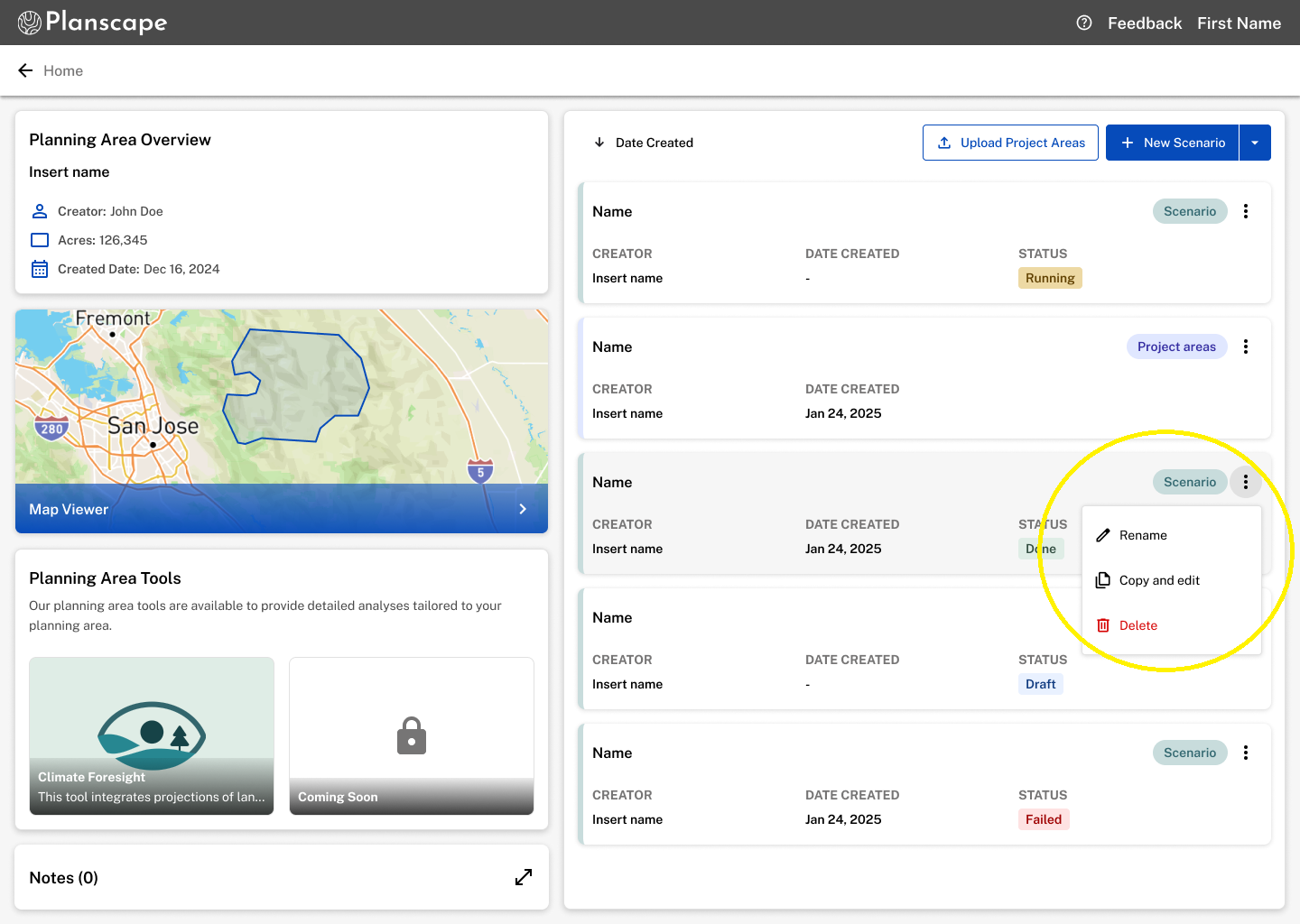
Use the three-dot menu to manage your scenario:
Copy and Edit: Iterate on your existing scenario selections.
Rename: Update the scenario title.
Delete: Permanently remove the scenario.
Was this article helpful?
That’s Great!
Thank you for your feedback
Sorry! We couldn't be helpful
Thank you for your feedback
Feedback sent
We appreciate your effort and will try to fix the article